 TanStarter Docs
Avatar Button
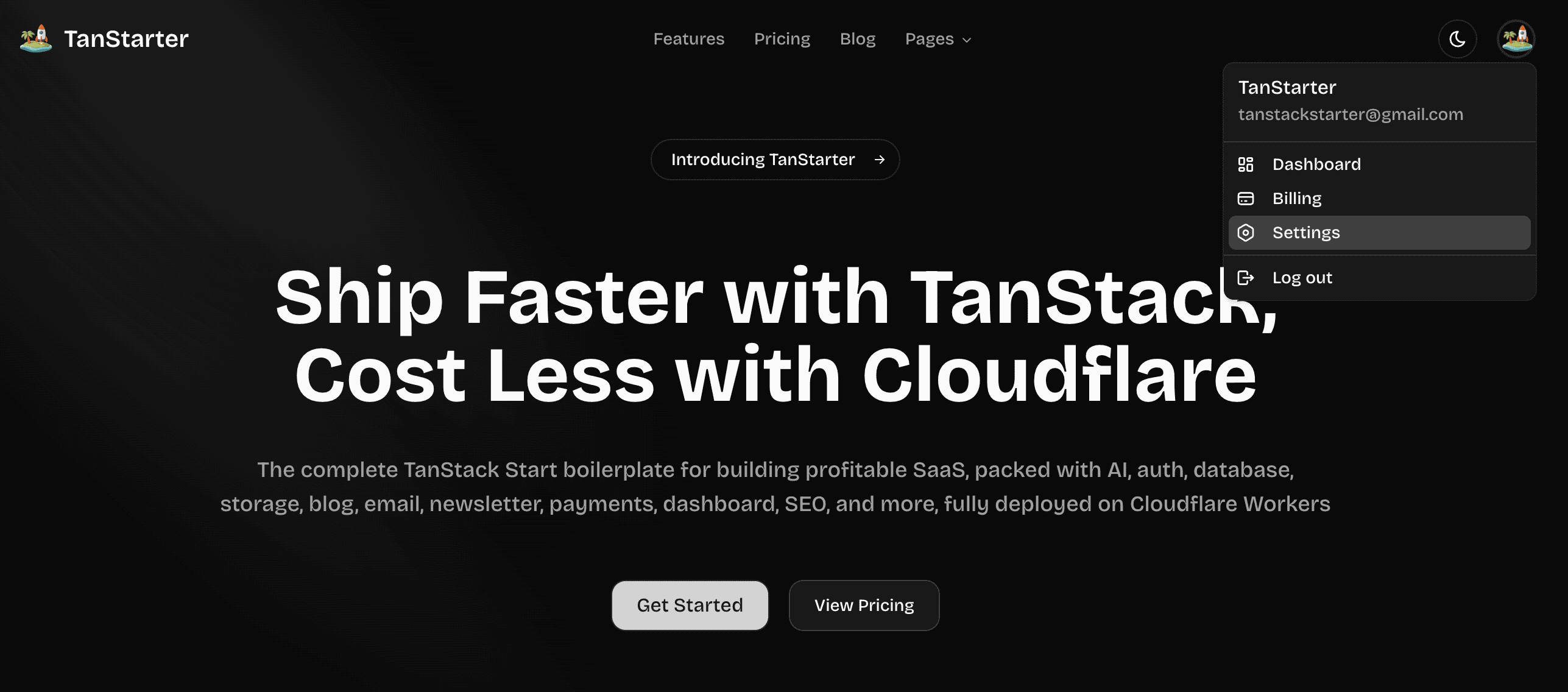
Configuring the user avatar dropdown menu
Defines the menu items in the user avatar dropdown in the header, each item is MenuItemConfig.
export function getAvatarLinks(): MenuItemConfig[] {
  return [
    { title: m.dashboard, href: Routes.Dashboard, icon: IconLayoutDashboard },
    { title: m.billing, href: Routes.SettingsBilling, icon: IconCreditCard },
    { title: m.settings, href: Routes.SettingsProfile, icon: IconSettings2 },
  ];
}
The avatar configuration defines the dropdown menu that appears when users click on their profile avatar in the header. This typically includes links to:
- User dashboard
- Account settings
- Billing/subscription management
- Logout option (handled separately, no need to configure this item)
This menu provides quick access to specific functionality for users without cluttering the main navigation.
Next Steps
Now that you understand the avatar configuration, explore these related topics: